> For the complete documentation index, see [llms.txt](https://support.sayprimer.com/primer/llms.txt). Markdown versions of documentation pages are available by appending `.md` to page URLs; this page is available as [Markdown](https://support.sayprimer.com/primer/connections/setting-up-crm/hubspot-integration/connecting-hubspot.md).
# Connecting HubSpot
Integrating HubSpot with Primer allows you to leverage your HubSpot properties (such as Contacts and Companies) to create more precise and targeted audiences.
{% hint style="info" %}
HubSpot integration is **READ-ONLY**
{% endhint %}
#### How to Connect HubSpot to Primer
**Step 1:** Navigate to the **Connections** tab in Primer and tap on the **HubSpot icon** in the Integrations section.
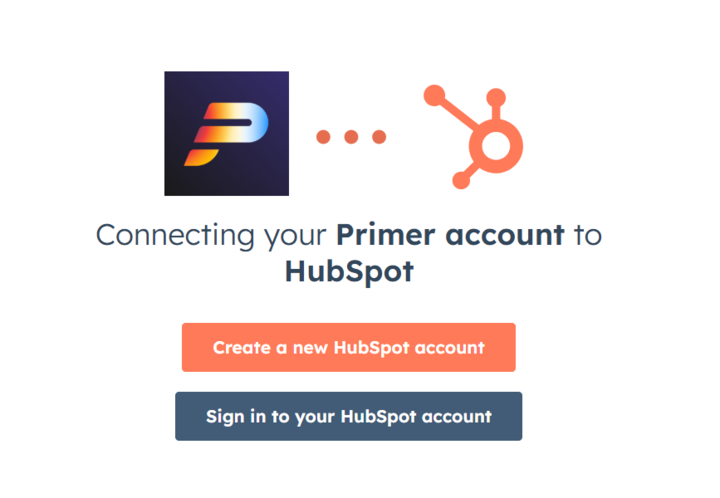
**Step 2:** Sign in to your HubSpot account. Ensure you have admin permissions or access to set up an API integration.
**Step 3:** After logging in, select the HubSpot account you want to connect to Primer.
**Step 4:** Once connected, you will receive an email confirming that your HubSpot account is now linked to Primer. In addition, HubSpot will display "Connected" in the Connections section to indicate the successful connection.
**Step 5:** Primer will begin importing and processing your records.
{% hint style="info" %}
**Ingestion Rate: 396,000 records per hour.**\
Example: 100K accounts + 300K contacts + 300K leads + 50K opportunities + 10K campaigns + 40K campaign members = 800K records = \~2 hours to ingest
{% endhint %}
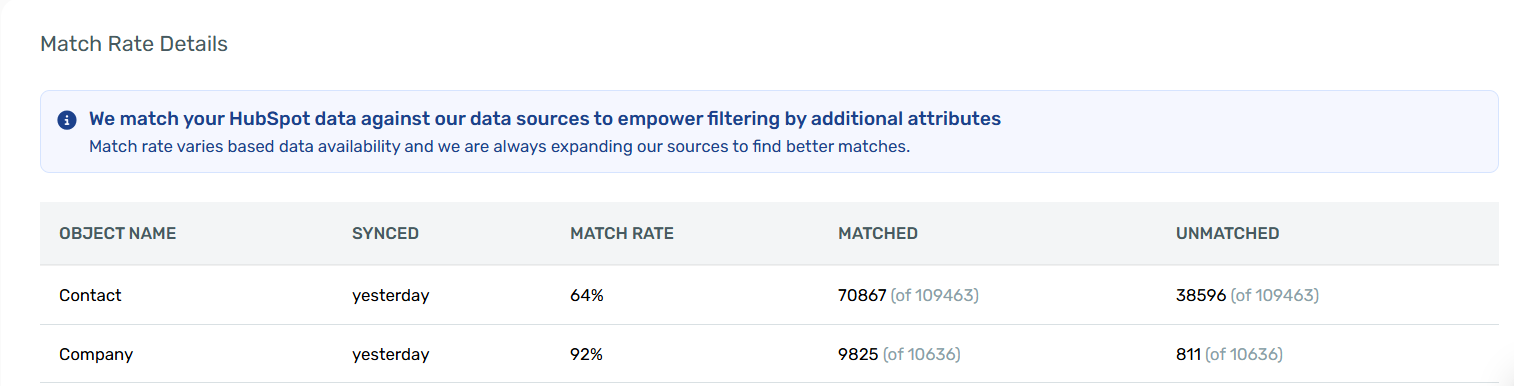
When importing records from HubSpot into Primer, we need to match your HubSpot records to our Primer database to ensure a consistent match rate with ad platforms.
The "object match rate" refers to our ability to confidently match a contact or company object to an existing record in our repository. Because we "pre-match" HubSpot data to our database, whenever you build an audience in Primer, that audience is much more likely to achieve a good match rate in ad platforms like Google, Meta, and LinkedIn.
**Step 6:** Once the Connection is complete, you can use HubSpot data to build audiences in Primer.
{% hint style="info" %}
Standard HubSpot properties will be available immediately, enabling you to use them right away. Custom HubSpot properties may take a little longer to process the first time, but after initial use, they’ll be optimized for faster loading in the future.
{% endhint %}
**Importing HubSpot Lists:** Primer doesn't currently support importing an existing HubSpot List directly. Instead, recreate your list's logic in Primer using HubSpot property filters — matching on the same fields, record source, or other criteria your list uses. See HubSpot Filter Criteria for the available fields.
By following these steps, you’ll be fully set up to use your HubSpot data with Primer.
---
# Agent Instructions
This documentation is published with GitBook. GitBook is the documentation platform designed so that both humans and AI agents can read, navigate, and reason over technical content effectively. Learn more at gitbook.com.
## Querying This Documentation
If you need additional information that is not directly available in this page, you can query the documentation dynamically by asking a question.
Perform an HTTP GET request on the current page URL with the `ask` query parameter, and the optional `goal` query parameter:
```
GET https://support.sayprimer.com/primer/connections/setting-up-crm/hubspot-integration/connecting-hubspot.md?ask=&goal=
```
`ask` is the immediate question: it should be specific, self-contained, and written in natural language.
`goal` is optional and describes the broader end goal you are ultimately trying to accomplish on behalf of the user. GitBook uses it to tailor the answer towards what is most useful for that goal.
The response will contain a direct answer to the question and relevant excerpts and sources from the documentation.
Use this mechanism when the answer is not explicitly present in the current page, you need clarification or additional context, or you want to retrieve related documentation sections.

.png?alt=media&token=6f0f41f9-a42e-4afd-bf72-ef9b390b1482)