> For the complete documentation index, see [llms.txt](https://support.sayprimer.com/primer/llms.txt). Markdown versions of documentation pages are available by appending `.md` to page URLs; this page is available as [Markdown](https://support.sayprimer.com/primer/build-and-manage-audiences/building-an-audience/adding-filters.md).
# Adding Filters
Primer's B2B database is built from many of the same data providers that power tools like Apollo.io or ZoomInfo. You can use our firmographic and demographic criteria as filters when shaping your audience.
{% hint style="info" %}
Note: The maximum audience size you can create within Primer is capped at **3,000,000 (for both companies and people)**. This limit is displayed at the top of the page. Primer will automatically select up to 3 million records from the filtered audience
{% endhint %}
#### Using Chat to Create Filters
You can add filters manually in the criteria view or describe who you want to reach in plain English using chat. Both options are available in the same panel and update the same filter tree.
In the chat box, enter a description of your target audience. Including details such as job title, company size, location, and industry will help Primer create more precise filters.
For example:
“Marketing Managers at companies with more than 1,000 employees across the United States.”
Primer will summarize how it has interpreted your request. Confirm the summary or describe any corrections in your own words.
Once confirmed, Primer automatically generates the relevant filters and AND/OR logic. It may expand your request to include related job titles, seniority levels, departments, industries, or other relevant criteria rather than matching only the exact terms entered.
The generated criteria are applied automatically and shown in the criteria view, where you can:
* Review or manually edit any filter.
* Select Show all values to see the full list included in a condition.
* Switch back to chat to refine the audience with instructions such as “Add Canada,” “Remove healthcare companies,” or “Also include VP-level marketing roles.”
You can continue refining the filters through chat or edit them directly in the criteria view. Select **Apply & Run** when you’re ready to finalize and run the audience.
***
#### Using OR Logic & Group Operators
OR logic lets you match any of several conditions, and group operators let you control how filter groups interact.
* **Toggle AND/OR:** Switch between AND and OR connectors on filters and groups to broaden or narrow your criteria.
* **Within or Between Groups:** Use OR within a filter group or between groups to match anyone who meets at least one condition.
* **Combine Fields:** Combine conditions across different fields such as job title, department, or seniority without creating duplicate audiences.
💡 *Filters can be dragged and dropped to reorder or regroup them, making it easier to refine your audience criteria.*
#### **Available Data Fields**
When using Primer's database, you can filter audiences based on various fields:
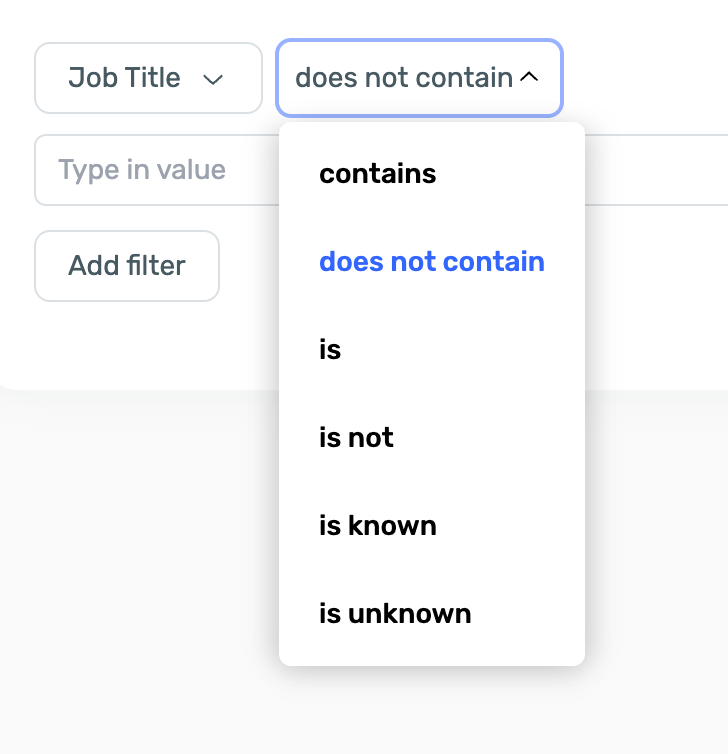
* **Job Title**: Up to 200 job titles can be specified. Use the "is" operator for an exact match or the "contains" operator to pull records that contain title keywords. Use the "does not contain" operator to exclude keywords.
The `contains` operator matches on substring — it returns any title where the keyword appears anywhere in the string (e.g., a filter for "market" would also match "marketing manager"), not just as a whole word. For an exact, whole-word match, use the `is` operator with the complete title, or combine multiple `is` filters with OR logic to cover variations.
* **Annual Revenue**: Filter companies based on revenue ranges.
* **Company Location**: Refine searches by country, state, or city.
* **Domain**: Search based on company websites. Companies not matched will appear in red (Max 1000 domains)
* Operators available:
* **is / is not** → Use these for exact domain matches. For example, *domain is `sayprimer.com`* will only return records from that exact domain, while *domain is not `sayprimer.com`* will exclude it.
* **is known / is unknown** → *is known* returns records that have a domain, while *is unknown* returns records without a domain.
* **TLD is / TLD is not** → Filter by top-level domains (extensions such as `.com`, `.gov`, `.au`). For instance:
* *TLD is `.com`* → only includes domains ending in `.com`
* *TLD is not `.org` or `.edu`* → excludes domains often associated with nonprofits or educational institutions, and can also be used to remove regional domains like `.de` or `.br`
* **Founded Year**: Filter companies by their founding year.
* **Headcount**: Target companies based on their size.
* **Industry**: Filter by industry type **(**[**full list here**](https://support.sayprimer.com/primer/building-audiences/how-to-build-an-audience/primer-filter-criteria/industry-definitions)**).**
* **Keywords**: Utilize keywords related to company activities.
* **Technologies**: Includes both front-end technologies found on websites and some back-end technologies sourced from job postings.
* **Department & Sub-Department**: Filter by specific departments within companies. Inferred from job titles. Not every record will have a department **(**[**full list here**](https://support.sayprimer.com/primer/building-audiences/how-to-build-an-audience/primer-filter-criteria/department-definitions)**).**
* **Person Location**: Target individuals based on their location, with options to filter by country, state, or city.
* **Seniority Level**: Inferred from job titles. Not every record will have a seniority.
* **NAICS Code:** Filter companies using their official NAICS industry classification.
* **Degrees:** Search for individuals based on their academic degree levels.
* **Majors:** Filter individuals by their field of study or academic major.
* **Skills:** Target individuals by specific skills listed on their profiles.
#### **Historical Targeting**
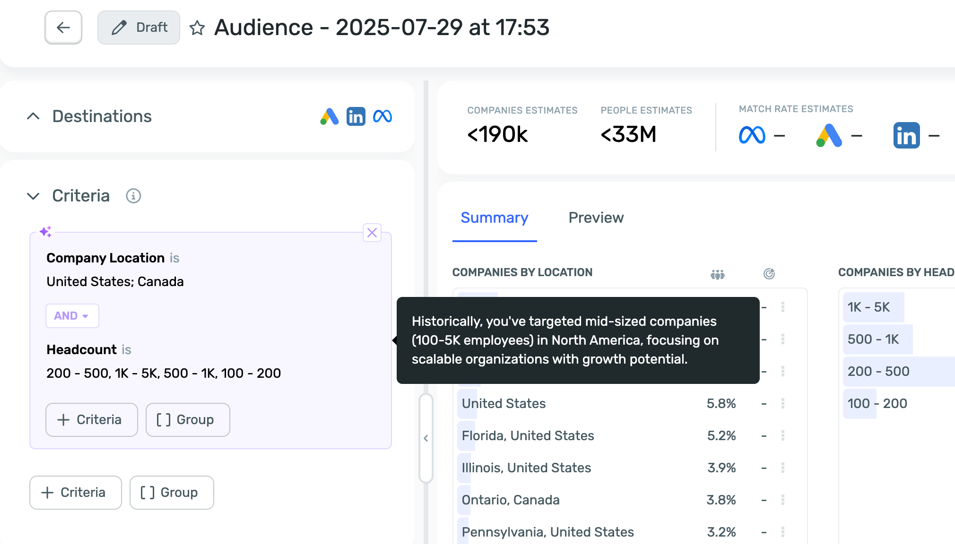
Over time, Primer will learn patterns in your audience building. You may see a **Historical Targeting** panel appear beside your filters. This feature uses your past audience activity to surface targeting recommendations tailored to you.
Here’s how it works:
* **Personalized Recommendations:** If you’ve run two or more audiences in campaigns over the past six months, Primer will identify targeting patterns that have performed well before and suggest audiences with similar attributes.
* **Always Up-to-Date:** Recommendations update daily to reflect the latest results from your campaigns, ensuring they remain relevant as your targeting evolves.
Historical Targeting helps you quickly spot audience opportunities that align with your proven performance, without needing to manually search through past campaigns. You can apply these suggestions directly or use them as a starting point to refine with additional filters.
#### **Undo, Redo & Reset**
* **Undo** – Go back one step to undo your most recent change.
* **Mac:** `⌘Z`
* **Windows:** `Ctrl Z`
* **Redo** – Redo a change you just undid.
* **Mac:** `⌘⇧Z`
* **Windows:** `Ctrl Y`
{% hint style="info" %}
**Note:** Undo and Redo let you move step-by-step through your recent edits. If you make a new change after using Undo, the Redo history will be cleared.
{% endhint %}
* **Reset** – Restore your audience to its **original version**, based on its current state:
* Ready / Live / Matching: Returns to the version that was most recently run.
* Draft: Resets to empty if you haven’t set an Ideal Customer Profile (ICP), or back to your ICP if you have one.
* Duplicate: Returns to the version the audience was copied from.
***
#### Why are some filters slower to process?
Some filters may display a turtle icon beside them, indicating that estimates could take longer to process. Standard properties are available immediately and can be used right away, while some custom or newly used filters may require additional processing initially.
After the first use, these filters are optimized for faster loading and improved performance in future estimates.
---
# Agent Instructions
This documentation is published with GitBook. GitBook is the documentation platform designed so that both humans and AI agents can read, navigate, and reason over technical content effectively. Learn more at gitbook.com.
## Querying This Documentation
If you need additional information that is not directly available in this page, you can query the documentation dynamically by asking a question.
Perform an HTTP GET request on the current page URL with the `ask` query parameter, and the optional `goal` query parameter:
```
GET https://support.sayprimer.com/primer/build-and-manage-audiences/building-an-audience/adding-filters.md?ask=&goal=
```
`ask` is the immediate question: it should be specific, self-contained, and written in natural language.
`goal` is optional and describes the broader end goal you are ultimately trying to accomplish on behalf of the user. GitBook uses it to tailor the answer towards what is most useful for that goal.
The response will contain a direct answer to the question and relevant excerpts and sources from the documentation.
Use this mechanism when the answer is not explicitly present in the current page, you need clarification or additional context, or you want to retrieve related documentation sections.